Rendering With An Atlas Texture
When it comes to rendering atlas textures, you have some choices. You can use Velaptor's built-in atlas texture loading support, use the Aseprite loader integration, or you can build your own custom atlas texture loader.
Click either the Built In Atlas Loader or Aseprite Loader tab below to see the guide for that particular atlas texture loading method.
To learn more about Aseprite, refer to the Aseprite Website
- Built In Atlas Loader
- Aseprite Loader
Go to the BuiltInAtlasTextures guide project to see the source code for a fully working example of this guide.
Go to the AsepriteAtlasTextures guide project to see the source code for a fully working example of this guide.
Another way to render textures is by using an atlas texture. This guide is a little more in-depth and longer than the previous guides. Stick with it, though; it will be worth it!
Want more detail about what an atlas texture is? Refer to the links below:
An atlas texture is a large image with multiple sub-images packed into a single image. With this single image, you use another file of a particular format such as JSON or XML, that describes the location, size, and other kinds of attributes for each image in the atlas texture.
If you are new to JSON, click here for a great 10-minute video.
When rendering textures the standard way, you render the entire texture. Although there is nothing wrong with rendering whole textures one at a time, there are pros and cons. In the end, it all depends on what you are trying to accomplish.
It all depends on your goals. A lot of games use a combination of whole texture and atlas texture rendering.
There are various tools that can create atlas textures and their metadata for you, such as TexturePacker and Spine.
Want to know more?
With an atlas texture, you can pack one or more animation sequences into a single image. In most game frameworks, a content system (or loader) takes care of loading both the atlas texture and its metadata. In Velaptor, the content manager fills this role, loading the atlas image and metadata together. At this point, it is very easy to automate the process of switching between textures to run an animation. Velaptor has built-in support for loading atlas textures and their associated metadata. You load both using the content manager, which handles the atlas image and JSON together.
Benefits:
- Reduces draw calls: Reduces the number of times Velaptor needs to send data to the GPU and reduces the number of draw calls. Instead of sending data and making draw calls for each texture, you only have to for a single atlas texture.
- Improved performance: Reduces draw calls to improve the performance of your game.
- Easier management: Easier to manage one large texture than many small ones, especially when it comes to loading and unloading textures and coordinating the draw calls between textures. The result is less code.
- Smoother Animations: Makes animations smoother by reducing the amount of time your game spends loading and unloading textures.
- Reduced memory usage: Can reduce memory overhead and state changes, since you can often load and manage one large texture instead of many small ones.
Velaptor does not currently have a tool to build these atlas texture images with the associated metadata. Plans are in the works to add TexturePacker integration. Velaptor can load atlas metadata at runtime, but it does not yet ship with a tool to generate atlas images and JSON from your raw images. Until official TexturePacker integration is complete, you can use TexturePacker directly or build a small tool to convert its JSON format into the metadata format Velaptor expects.
Do not stress too much about whole vs. atlas texture rendering. Choosing between whole-texture and atlas rendering comes with practice and depends on your game's needs. Keep your needs in mind as you develop your game, and do not worry about performance until it starts to become an issue.
Expand me for more info!
Let's consider a 2D space shooter game with lots of bullets and enemies. In this type of game, there may be a large number of sprites for the player, the enemies, and the projectiles. Loading and rendering all of these individually can quickly lead to performance issues due to the large number of draw calls required.
By using atlas textures, you can pack all of these sprites into a single texture, which can be loaded and rendered more efficiently. For example, an atlas texture can contain all of the different enemy sprites, along with their animations and various attack patterns. Similarly, you can create another atlas texture that contains all of the different bullet sprites, including the various types of projectiles and their associated effects.
By doing this, the game engine can render multiple sprites in a single draw call, significantly improving performance. Additionally, since all of the sprites are contained within a single atlas texture, there's no need to switch textures between draw calls, which reduces overhead and leads to smoother gameplay.
Another benefit of using atlas textures is that it can reduce the overall size of the game's asset files. This is because all of the sprites are packed into a single texture, reducing the amount of duplicated metadata and overhead that would be required for individual files.
Overall, using atlas textures in a game can improve performance, reduce file size, and lead to smoother gameplay.
Enough explanation! Let's get our hands dirty and build something!
For this tutorial, we are going to build a simple game that will show a blue animating flame. This flame will be rendered in the center of the window and will animate in a loop indefinitely. We will also add a very small amount of randomness to it as well to enhance the animation.
Step 1: Create Project
Create a basic Velaptor application.
For more info, refer to the Quick Start guide.
- Built In Atlas Loader
- Aseprite Loader
No further project setup needed.
To use the Aseprite integration, you must install the KinsonDigital.VelaptorAseprite nuget package into your project.
Install the package by running the following command in the terminal:
dotnet add package KinsonDigital.VelaptorAseprite
You can also use the IDE of your choice to install the package.
Step 2: Get atlas content
- Built In Atlas Loader
- Aseprite Loader
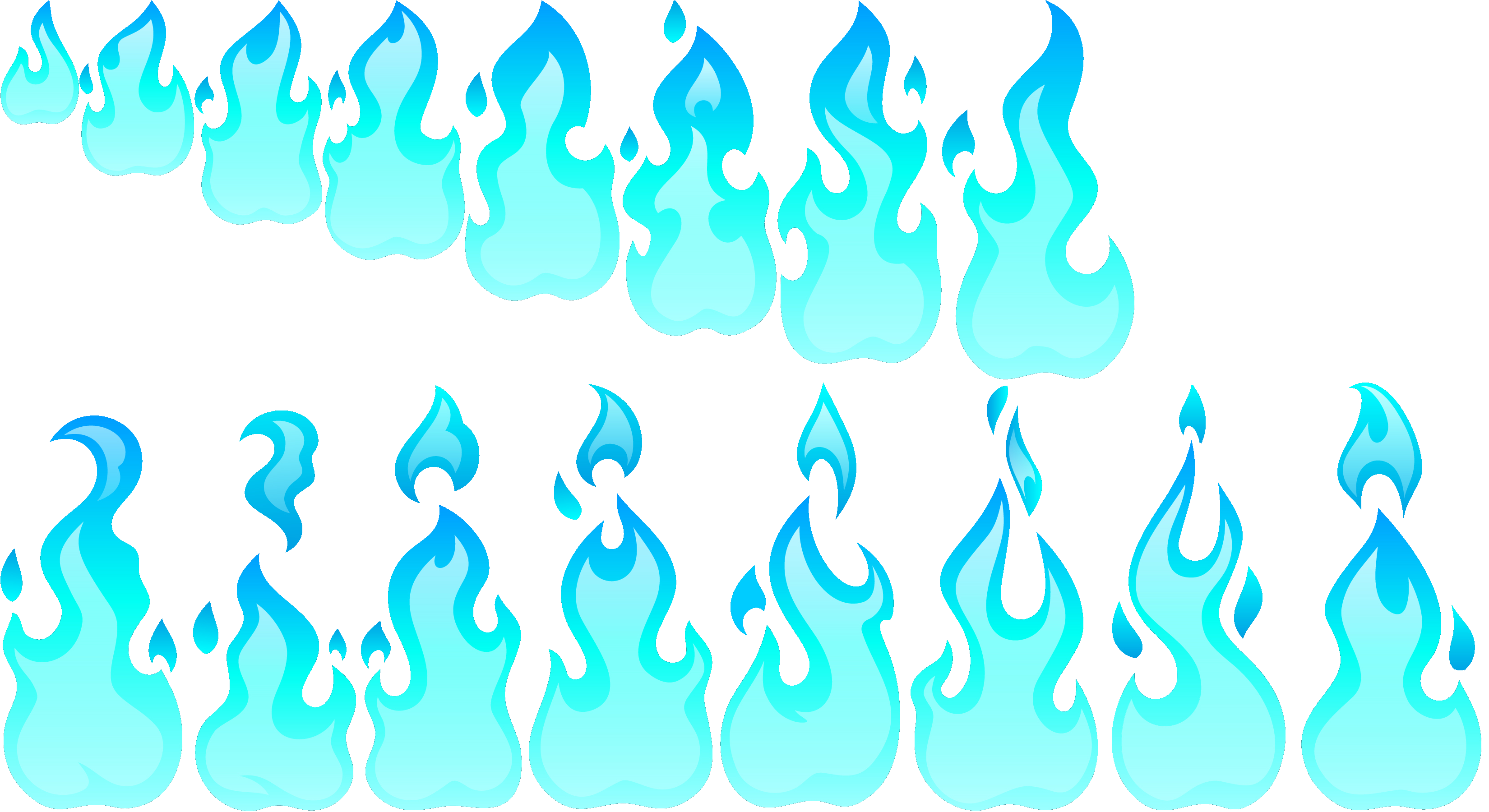
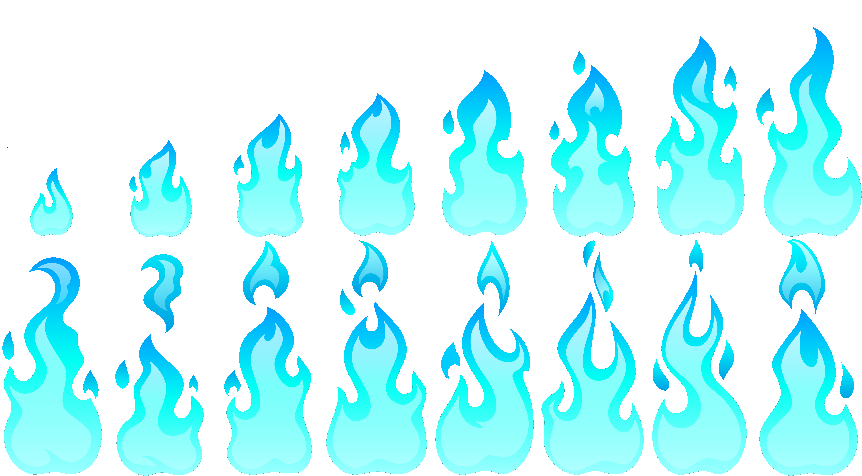
Step 3: Add content to project
Add the downloaded atlas texture and metadata JSON file to the Content/Atlas/**/ directory in the project.
For more info, refer to the Adding Content guide.
Both files should be in the same directory and should have the same name, differing only by file extension. The two files you downloaded should be named atlas.png and atlas.json.
You can name the files whatever you want, but the file names, excluding the extensions, must match. When you load an atlas texture, you will specify the name of the atlas image and metadata and both files will be loaded at the same time.
If you have an image file with no metadata file, or vice versa, Velaptor will throw an exception
letting you know that one, the other, or both are missing.
Step 4: Create class fields
- Built In Atlas Loader
- Aseprite Loader
Create the following class fields which will be used for holding content data, loading content, manage batching, keep track of frame timing, and rendering content.
public class Game : Window
{
    private const int FullSizeStartFrame = 8; // The frame index where the flame has grown to full size
    private readonly ITextureRenderer textureRenderer; // Renders textures
    private readonly IContentManager contentManager; // Loads various types of content
    private readonly IBatcher batcher; // Batches the rendering of textures
    private IAtlasData? atlasData;  // Reference to the loaded atlas (texture + metadata)
    private AtlasSubTextureData[]? subTextureData; // Holds all of the frame metadata from the atlas for the flame animation
    private float elapsedMs; // Milliseconds elapsed since the last animation frame change
    private int currentFrame; // The current frame of the animation
    private bool isFullSize; // Whether or not the flame has grown to full size
}
Why frame timing?
Think of a flip book. If you were to flip through the pages of a flip book, you would see the animation. The faster you flip through the pages, the faster the animation will appear. The slower you flip through the pages, the slower the animation will appear. The same concept applies to animations in games.
The problem with software is that it runs each frame very fast. If we changed the frames of the animation as fast as the game would run, the animation would move too fast. We need to slow down the animation to the desired speed so that it runs smoothly.
How fast you want to run your animation is up to you. You can make it run as fast or as slow as you want.
This is the reason for the elapsedMs and currentFrame fields.
Create the following class fields which will be used for holding content data, loading content, manage batching, and rendering content.
public class Game : Window
{
    private readonly ITextureRenderer textureRenderer; // Renders textures
    private readonly IContentManager contentManager; // Loads various types of content
    private readonly IBatcher batcher; // Batches the rendering of textures
    private IAsepriteAtlas? atlasData;  // Reference to the loaded atlas (texture + metadata)
}
Aseprite Timing
Using the Aseprite loader integration does not require keeping track of frame timing.
Step 5: Basic setup
In the Game class, add the following code to the constructor to set up the window and instantiate the objects mentioned before.
public class Game : Window
{
    ...
    public Game()
    {
        Title = "Atlas Textures";
        Width = 500;
        Height = 500;

        this.contentManager = ContentManager.Create();
        this.textureRenderer = RendererFactory.CreateTextureRenderer();
        this.batcher = RendererFactory.CreateBatcher();
    }
}
Step 6: Load and unload the content
6.1: Load content
Next, let's create the OnLoad() override method and add code to the method to load the atlas data.
- Built In Atlas Loader
- Aseprite Loader
protected override void OnLoad()
{
    // Loads the atlas.png and atlas.json files
    this.atlasData = this.contentManager.Load<IAtlasData>("atlas");

    // The string "flame" must match the frame name used in your atlas metadata.
    this.subTextureData = this.atlasData.GetFrames("flame");

    base.OnLoad();
}
protected override void OnLoad()
{
    // Loads the atlas.png and atlas.json files
    this.atlasData = this.contentManager.LoadAsepriteAtlas("atlas", "grow");
    this.atlasData.Enabled = true;

    // Executes once the 'grow' animation cycle has completed,
    // and then transitions to the 'burn' animation cycle.
    this.atlasData.OnCycleComplete = (_) =>
    {
        this.atlasData.Play("burn"); // Play a different animation
    };
    this.atlasData.Play();

    base.OnLoad();
}
The this.atlasData class field variable will contain the loaded texture and the metadata for the texture.
We can use this data to make decisions on animation, positioning and more.
All you have to provide is the name of the atlas. Though you can use the file extension, it is not required and there is no need to load the .png and .json files separately
Expand me for more info
- Built In Atlas Loader
- Aseprite Loader
Let's go over the JSON data that is contained in the metadata file.
💡 Understanding this JSON data is not required and is informational only.
$type: This is the type of object that is used by the JSON serializer to know what type of object to create.
There is no need to worry about this key. Do not change it and you will be fine.
Bounds: This is the x, y, width, and height of the sub-texture in the atlas. This is used to determine where the sub-texture is located in the atlas. You will use these during the rendering process to render the frame of the animation.
FrameIndex: This is the frame number of an animation. If the frame number is -1, then this is not part of an animation. This is what you will use to keep track of which frame of animation you want to render.
Name: This is the name of the sub-texture and is what you will use in determining which group of frames animation
you want to load and when calling the GetFrames() method. If you wanted to load the metadata for the ship
sub-texture, you would call GetFrames("ship") and you would only get an array with a single item.
{
    "$type": "Velaptor.Graphics.AtlasSubTextureData, Velaptor",
    "Bounds": "1, 846, 403, 948", // The x, y, width, and height of the sub-texture in the atlas
    "FrameIndex": 8, // The frame number of an animation
    "Name": "flame" // The name of the sub-texture
},
{
    "$type": "Velaptor.Graphics.AtlasSubTextureData, Velaptor",
    "Bounds": "428, 850, 361, 948",
    "FrameIndex": 9,
    "Name": "flame"
},
{
    "$type": "Velaptor.Graphics.AtlasSubTextureData, Velaptor",
    "Bounds": "0, 76, 75, 75",
    "FrameIndex": -1, // -1 means that this is not part of an animation
    "Name": "ship"
}
To learn more about aseprite, refer to the Aseprite Docs
6.2: Unload content
- Built In Atlas Loader
- Aseprite Loader
Now we can unload the content when the game shuts down. This is to clean up resources that are no longer needed.
To do this, we can override the OnUnload() method. We can then call the Unload() method on the content manager
and send in the IAtlasData class field we created earlier.
Let's override the OnUnload() method and unload the atlas data. It is always a good idea to unload
and release resources when shutting down the game or when switching to a new scene.
protected override void OnUnload()
{
    this.contentManager.Unload(this.atlasData);
    base.OnUnload();
}
Now we can unload the content when the game shuts down. This is to clean up resources that are no longer needed.
To do this, we can override the OnUnload() method. We can then call the UnloadAsepriteAtlas() method on the content manager
and send in the IAtlasData class field we created earlier.
Let's override the OnUnload() method and unload the atlas data. It is always a good idea to unload
and release resources when shutting down the game or when switching to a new scene.
protected override void OnUnload()
{
    if (this.atlasData is not null)
    {
        this.contentManager.UnloadAsepriteAtlas(this.atlasData);
    }

    base.OnUnload();
}
Step 7: Let's animate
Now that we have loaded the atlas data, let's add some code to the OnUpdate() method to animate the sub-textures.
7.1: Updating the animation
- Built In Atlas Loader
- Aseprite Loader
Add some code to the OnUpdate() method to check if enough time has passed to
change the frame of the animation.
protected override void OnUpdate(FrameTime frameTime)
{
    if (this.subTextureData is null)
    {
        throw new LoadContentException("The atlas data has not been loaded");
    }

    this.elapsedMs += (float)frameTime.ElapsedTime.TotalMilliseconds;

    // Move to the next frame every 124ms
    if (this.elapsedMs >= 124)
    {
        // If the current frame is one of the frames after
        // the flame has grown to full size.
        if (this.currentFrame >= FullSizeStartFrame)
        {
            this.isFullSize = true;
        }

        // Get the starting frame index based on if the flame has
        // grown to full size or not.
        var startFrame = this.isFullSize ? FullSizeStartFrame : 0;

        // If the last frame has been reached, reset to the starting frame
        this.currentFrame = this.currentFrame >= this.subTextureData.Length - 1
            ? startFrame
            : this.currentFrame + 1;

        // Reset the elapsed time so we can wait for another
        // 124ms before moving to the next frame
        this.elapsedMs = 0;
    }

    base.OnUpdate(frameTime);
}
This code will check if 124ms has passed. If it has, then it will move to the next frame of the animation. If the last frame has been reached, then it will reset to the first frame. Now we have our flip book!
The startFrame is the frame where the animation starts, which will be either 0 or 8. If the flame has not grown to
full size, frames 0-7 will be used. If the flame has grown to full size, frames 8-15 will be used.
protected override void OnUpdate(FrameTime frameTime)
{
    if (this.atlasData is null)
    {
        return;
    }

    // Update the animation in the atlas data
    this.atlasData.Update(frameTime);

    base.OnUpdate(frameTime);
}
Expand me for more info!
FPS stands for frames per second, which, as the name implies, is the number of frames that are rendered every second.
The game loop of a game consists of the two most important methods: OnUpdate() and OnRender().
The OnUpdate() and OnRender() methods are called once per frame. The speed (or frequency) at
which these methods are called is what determines the FPS of the game. The faster the methods run,
the higher the FPS.
Calculating frame duration:
If you want to calculate how many milliseconds it takes for a particular frame rate, just take the value 1000 and divide it by the desired frame rate.
Formula:
For example, . This means if you want to run something at , you would need to to make something happen every to obtain that frame rate.
Calculating FPS:
To calculate the FPS, divide the number of frames rendered by the number of seconds that
a game loop iteration has run. For example, if a game loop iteration runs for 1 second and 60 frames,
then the FPS would be 60. If a game loop iteration runs for 1 second and 30 frames, then the FPS would
be 30.
Formula:
Since we can keep track of how much time has passed, we can calculate the FPS of the game. We can
take advantage of this time metric coming into the OnUpdate() and OnDraw() methods to have things
happen at a certain frequency. In this case, the speed at which we want our animation to run.
Step 8: Render animation
Now we can finally render the animation to the screen. Add the following code to the OnDraw() method.
- Built In Atlas Loader
- Aseprite Loader
protected override void OnDraw(FrameTime frameTime)
{
    // Start the batch
    this.batcher.Begin();

    var pos = new Vector2(Width / 2f, Height / 2f);

    // Render only the sub-texture in the atlas at the center of the window
    // Until the first 124ms elapse, it renders unflipped
    this.textureRenderer.Render(this.atlasData,
        "flame",
        pos,
        0f,
        0.25f,
        Color.White,
        RenderEffects.None,
        this.currentFrame);

    // End the batch to render the entire batch
    this.batcher.End();

    base.OnDraw(frameTime);
}
Here we are using the location data from the frame metadata to know where in the atlas the current frame or sub-texture is located. We then render only that sub-texture to the screen.
protected override void OnDraw(FrameTime frameTime)
{
    if (this.atlasData is null)
    {
        throw new LoadContentException("The atlas data has not been loaded");
    }

    // Start the batch
    this.batcher.Begin();

    var frame = this.atlasData.GetCurrentFrame();

    var srcRect = frame.Bounds;
    var destX = (int)(Width / 2); // Center horizontally
    var destY = (int)(Height / 2); // Center vertically
    var destRect = new Rectangle(destX, destY, (int)this.atlasData.Texture.Width, (int)this.atlasData.Texture.Height);

    this.textureRenderer.Render(
        this.atlasData.Texture,
        srcRect,
        destRect,
        1f,
        0f,
        Color.White,
        RenderEffects.None);

    // End the batch to render the entire batch
    this.batcher.End();

    base.OnDraw(frameTime);
}
Step 9: Run it
Run the game and see the results! You should see a small window with a blue flame animating in the center of the window as shown below.
The animation will be much smoother than what is shown here.
Step 10: Bonus!
You do not have to do this step, of course, but what is game development without a little bit of extra fun? Let's improve the randomness of the flame animation.
10.1: Add more fields
Add two more class fields to the Game class. The random field will be used to randomly choose between a horizontal
or non-horizontal orientation. The renderEffects field will be the layout setting at the time of rendering.
public class Game: Window
{
    ...
    private readonly Random random = new (); // Chooses random numbers
    private RenderEffects renderEffects; // The horizontal orientation to render flame
    ...
}
10.2: Add flip behavior
- Built In Atlas Loader
- Aseprite Loader
Add the following code at the bottom of the if block to randomly choose whether the flame should be flipped horizontally. This will choose a number between 0 and 1. If 0 is chosen, the flame will be flipped horizontally. If 1 is chosen, the flame will not be flipped horizontally.
This is synonymous with flipping a coin.
protected override void OnUpdate(FrameTime frameTime)
{
    ...
    // Move to the next frame every 124ms
    if (this.elapsedMs >= 124)
    {
        ...
        // Randomly choose to have the flame flipped horizontally or not flipped at all
        this.renderEffects = this.random.Next(0, 2) == 0
            ? RenderEffects.FlipHorizontally
            : RenderEffects.None;
        ...
    }
    ...
}
Do not forget to change the RenderEffects parameter in the OnDraw() method to use the renderEffects field instead of RenderEffects.None.
protected override void OnDraw(FrameTime frameTime)
{
    ...
    this.textureRenderer.Render(this.atlasData,
        "flame",
        pos,
        0f,
        0.25f,
        Color.White,
        this.renderEffects,
        this.currentFrame);
    ...
}
The only thing we have left is to randomly choose the orientation of the flame every time the frame changes.
We can do this by adding some code to the OnFrameChange event of the atlas data. This event is triggered
every time the frame changes, so it is the perfect place to add our random orientation code.
protected override void OnLoad()
{
    ...
    this.atlasData.OnFrameChange = (_, _) =>
    {
        // Randomly choose to have the flame flipped horizontally or not flipped at all
        this.renderEffects = this.random.Next(0, 2) == 0
            ? RenderEffects.FlipHorizontally
            : RenderEffects.None;
    };
    ...
    base.OnLoad();
}
Do not forget to change the RenderEffects parameter in the OnDraw() method to use the renderEffects field instead of RenderEffects.None.
protected override void OnDraw(FrameTime frameTime)
{
    ...
    this.textureRenderer.Render(
        this.atlasData.Texture,
        srcRect,
        destRect,
        1f,
        0f,
        Color.White,
        this.renderEffects);
    ...
}
10.3: Run it
Now run your game again, and the flame will feel a little more realistic due to the randomness of its orientation!